Saturday, October 3, 2009

Review: LEGO MINDSTORMS NXT-G Programming Guide

Hey all, I recently got my hands on the LEGO MINDSTORMS NXT-G Programming Guide by Jim Kelly (author of the NXTStep Blog), and I thought I would share my thoughts on the book. I know it is a fairly old title (published in 2007) but the information it contains is still relevent to NXT-G programming today.

Jim Kelly provides information on all of the NXT-G programming blocks available in the NXT-G 1.x software (most of which is still relevent to NXT-G 2.0) as well as information on data-wires, creating MyBlocks, and a few mathematics equations, all presented in a language easily understood and enjoyed by the young target audience (10+). The author begins with an introduction to programming, the art of Psuedo code, and introduces a few simple programming terms throughout the book. I read the book from start to finish in less than a day (without doing the experiments and playing with NXT-G - which I would recommend doing while reading the book), and the information provided by Jim is easy to take in - it is not like reading a straight-to-the-facts guide, but eases the reader into the book through the use of friendly language - which actually made the book fun to read (for me, anyway). Even if you do not read the book chapters in chronological order, the book still makes a great guide and index for quickly finding the information you need. You will completely master what you have learned by creating and experimenting with the sample programs provided in the book, which also show the reader a few places where the programming blocks and your new skills can be used.

The content is very complete in terms of describing the functions of each programming block, and detailed graphics are used as the author explains the functions of the blocks. The chapters are short and full of knowledge on each programming block.

The graphics found in the book are a mixture of black and white photos (of SPOT - the robot used by the author to demonstrate and practice new programming skills on), a few block diagrams (see example below) as well as black and white screenshots of NXT-G (of EACH setting of EVERY programming block). The building instructions for SPOT can be found on the NXTStep (scroll down on the right side), as they are not printed in the book (opinions naturally vary on this), but the programming skills are VERY easily transfered to the reader's own robot.

There are, naturally, a few errors in the book, like the Appendix on the X/Y Co-ordinate system used by the Display block when drawing (the Y co-ordinate is described as the opposite of how it actually works, Y actually increases when moving upwards), but overall the book is a great guide for beginners to the NXT-G programming language, as well as teaching some expierienced NXT users a thing or two (How does the default Switch Block setting work and when is it used ;)).

In conclusion, I would definately recommend the book to the intended audience, and it is probably a great addition to a Father-Son team effort in learning about the MINDSTORMS NXT, as well as adults new to the NXT! The information has been described as being available on the internet and in the help files provided in NXT-G (Jim Kelly even tells the reader to use the help guides for finding out more about data-wire hubs), but if you are looking for a very readible book on NXT-G, a resource that you can continually use, and an introduction to useful programming skills, then this book is probably of worth to you.

Other Notes:
Sadly, the Errata found on the Apress (Publisher) site has not been used by the other reviewers who complain about the book, but any corrections you are looking for can probably be found on the NXTStep Forum board, where you can also ask the author any questions you have!

New NXT-G 2.0 Feautures not covered:

- Colour Sensor Block
- Initate Bluetooth Block
- Remote Control
- Sound Editor
- Image Editor
- Use of Floating Point Mathematics

Thursday, September 24, 2009

NXTLog Snap Bot Building Challenge

Hey all, a quick update: The NXTLog Snap Lock Building Challenge is out! The aim of this challenge is to build a robot using the least amount of parts possible - see main details below:

Main Challenge Details:

* Make a robot using the least amount of parts possible

* Robot must fit into one of four catergories:

Animals
Humanoid
Machines
Vehicles

* You may enter from Tuesday September 1, 2009 – Saturday October 31, 2009

* All projects must be tagged: snapbot

* Usual NXTLog terms apply - the judging criteria can be found on the official NXTLog page using the link at the end of this post

I will upload and post about the robot I have built for this challenge this weekend!

--> NXTLog Snap Bot Challenge Page

LA

Tuesday, September 8, 2009

LEGO®'s Fairplay Policy

Every now and then you might ask yourself "what can I not do when posting about LEGO?" If you want to keep your unofficial LEGO (MINDSTORMS) website acceptable in The LEGO Group's eyes, and enjoy reading about Law, you may like to read their Fairplay Policy:

--> LEGO®'s Fairplay Policy

And here's an example of LEGO disciplining their guidlines:

--> Holly-Wood CAD Site

Better posts to come ;-)

LA

Thursday, September 3, 2009

LEGO MINDSTORMS NXT-G 2.0 - Importing Images

Continuing on from my last post on Image formats supported by NXT-G 2.0, and my post on the Image Editor found in the software, I will now look at importing pictures into the Image Editor for use on the NXT brick.

Importing Images

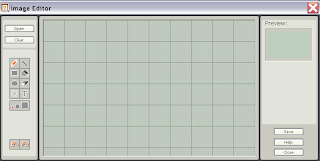
Once you have installed and opened NXT-G 2.0 and started the Image Editor, you will find this screen on your computer:

By clicking on the "Open" button, we will get the option to choose which image on our computer we would like to import for use on our NXT bricks. These images can be full colour, as the software will automatically convert it to a black and white image after we perform a series of actions:
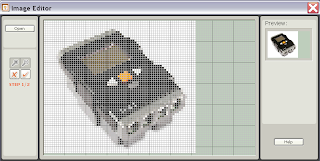
Image Size


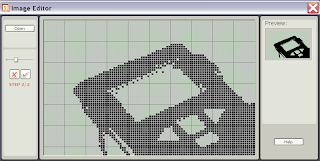
After selecting an image, the image will be imported into the Image Editor screen and we will first have the opportunity to change the size of the image using the magnifying glass icons - called Step One in the software. You can cancel the import at anytime by clicking the "X" button located just below the Magnifying Glass icons - See the images below;


Click the 'tick' button when you are happy with the size of your image. Your image will then be converted to a black and white image, and you will be directed to Step Two - chnaging the threshold of the image. Rather than trying to explain what this means for those who are not aware of thresholds, I created the following quick image to show its' effects.
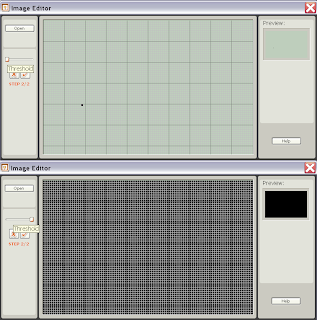

Sliding the "Threshold bar" to the left (Top picture) will make the image as light as possible, so only the darkest features of your image will be shown, and sliding the bar to the right (bottom image) makes the image as dark as possible, only showing the lightest details of your image - or pure black. Remember, at this point your image has been converted to a black and white image, and changing the threshold level will let you decide which details of you image will be shown and which details will be removed from the image. Play around until you find the suitable threshold for your image - usually this is around the middle of the "Treshold Bar", which coincidentally is the default setting for imported images in NXT-G 2.0. Here is my imported image;


Clicking the "Tick" box will complete the process, and allow you to edit your imported image using the standard tools.


Remember to save your image as a .ric file if you want to use it on your NXT Brick.


And thats it!


Note: Image I used is from The LEGO Group:
http://shop.lego.com/Product/?p=10287

Sunday, August 30, 2009

What's the difference - NXT-G 2.0 Image Formats

The LEGO MINDSTORMS NXT-G 2.0 software allows users to easily open, edit, and save images in a variety of formats, but what is the difference between formats? Why does it matter if I save an image as a .jpg file instead of a .ric file? Prepare to be enlightened...

(If you are just interested in the straight forward facts, skip down to the conclusion of this post)

First of all, no matter which format you save images as through NXT-G 2.0, the result will almost be the same! Only differences in the size of the file may effect a common computer user - have a look at the table below...


(On this table "Empty Image" means I didn't add anything to the image before saving, and "Full Image means I completely blackened my image before saving - all images saved using the Image Editor in NXT-G 2.0)


As you can see, .bmp images are the largest files at 19.8 Kilobytes (kb), and .jpg files are the smallest size at only 742 bytes! However, every image file except .jpg files have a constant size, for as you can see from my table, only the .jpg file changes in size between a full and empty image. Interestingly enough, .jpg files change in size depending on where the blackened areas are in the image, causing the .jpg file size to alter from around 741 bytes to around 2.5 Kilobytes. But considering how much disk space our computers have, who needs to worry!


Note: These image sizes are for images on a Windows XP
computer
. The size of an image on the NXT is 0.9
Kilobytes (around 900 bytes).


The NXT only displays .ric files, and any imported image will need to be saved as a .ric file before you can use it on the NXT. Once saved as a .ric file, you can use your image through a Display Block:


Note: All images saved through NXT-G 2.0 will be saved to the folder:

C:\Program Files\LEGO
Software
\
LEGO MINDSTORMS NXT\engine\Pictures

where the red writing represemts where you installed NXT-G 2.0 to if you changed any settings during installation.

All images created in the NXT-G 2.0 Image Editor have 100 x 64 pixel dimensions (width by height)

What should I use on my computer?

The .ric files are only useful for users downloading them to their NXT brick. What happens if you want to see what image you are downloading beforehand? You internet browser does not support viewing .ric files, so that leaves .jpg, .png, and .bmp files - which is best? The image file size table shown at the beginning of this post outlined the... file sizes, but what about other differences? Here are some other facts about using images on your computer:

JPG/JPEG
* Use on: Photographs, Realistic Drawings
* Bad results on: Line and Letter Drawings
* Loses detail after every edit - becomes more blurred (check it out using MS paint or similar - on large images, as the .ric files do not show this effect))

PNG
* Use on: Line and Letter Drawings, Clipart, Computer Image Scans (E.g. When using an external scanner to load a piece of paper onto your computer)
* Bad results on: Photographs, Full colour images
* Doesn't lose detail after every edit

All of the above files formats are easily distibuted on the internet as well, as every internet browser can view them.

BMP
* Larger Files

RIC
* NXT-only file, distribute only to other NXT-G 2.0 users, or users with other software supporting .ric files (more to come on this)
* Web browsers will not view them - require download and import into NXT-G 2.0 or other supportive software

More info can be found on the web, a good, simple, but helpful website can be found here:

http://toolkit.crispen.org/formats/index.html

So, in conclusion:

* The NXT can only display .ric images
* No image viewers support .ric files - including internet browsers
* Once an image is saved as a .ric file through the NXT-G 2.0 Image Editor, it can be displayed on the NXT using a Display Block
* Images saved using the NXT-G 2.0 Image Editor can be located on your computer under the LEGO MINDSTORMS NXT\engine\Pictures directory where you installed NXT-G 2.0
* Images created in the NXT-G 2.0 Image Editor have 100 x 64 pixel dimensions
* On the XXT brick, .ric files are about 900 bytes in size

* On your computer, .JPG files have the smallest image size, and .bmp has the largest file size
* Saving an image used on the NXT as any other image file type will not change the content of the picture
* For big images on your computer, .jpg files should be photographs, and png pictures should be text and line drawings
* .JPG files with large dimensions will lose detail and become blurred after every saved edit

Saturday, August 29, 2009

Interger Blocks in NXT-G 2.0

Steve Hassenplug over at TeamHassenplug.org has found a solution to using Interger programming blocks from NXT-G 1.x software in the new NXT-G 2.0 software. NXT-G 2.0 uses Floating Point math blocks unlike previous versions of the software, however Interger blocks are also installed but not available in the programming palletes. First of all, Whats the difference?.. Read On:

Interger Calculations

- E.g. 5, 10, 100, 5567

- Round Number results

- No decimal points

- NXT-G 1.0/1.1


Floating Point Calculations

- E.g. 5.97667, 9547.9767,

- Decimal points

- Large numbers that cannot be represented as intergers

- NXT-G 2.0

Quoting TeamHassenplug:

To add them (Interger Maths Blocks) to a pallet, simply create an empty file in the BlockRegistry directory, in the pallet sub-directory, with the name of the block and a .txt extension.


Ex: [LEGO MINDSTORMS
directory]\engine\EditorVIs\BlockRegistry\Data\Numeric Operations.txt


The list of available blocks is located in: [LEGO MINDSTORMS
directory]\engine\vi.lib\LEGO\Blocks


--> Steve Hassenplug's Solution

Thursday, August 20, 2009

LEGO Education Constructopedia

Hey all, for those of us who are interested in the mechanical design behind some of the great LEGO creations that have appeared throughout the year, and if you have not already done so, check out the LEGO Education Constructopedia. There are some great diagrams and explanations on simple ways we can improve our design skills with the use of gears and pulleys, including compound gearing, changing pully direction and speed, idler gears, and a few other topics which create the 11 pages of engineering tips and tricks.